
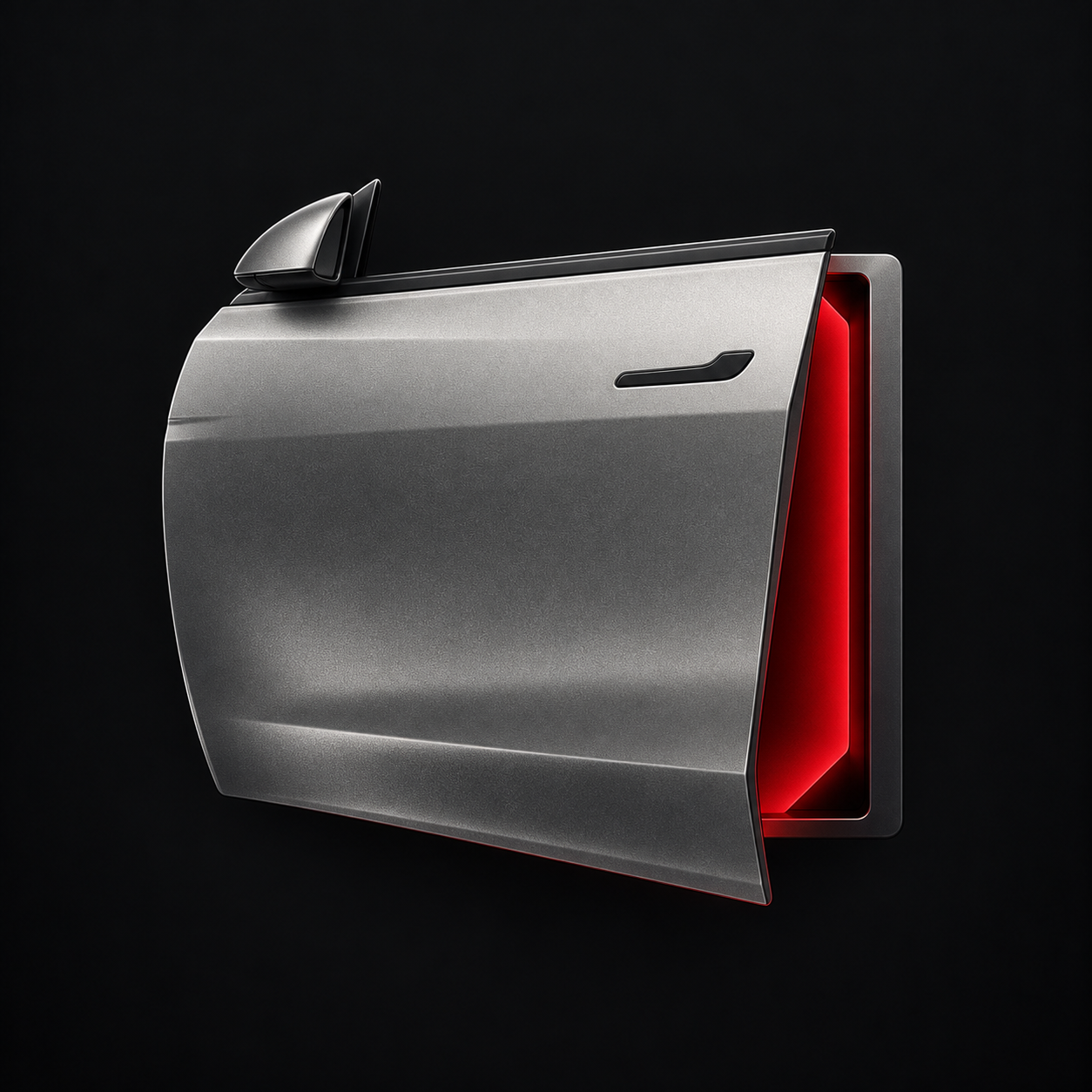
How to unlatch a Tesla door from iPhone or Apple Watch
Compare nearby Bluetooth door controls with Tesla’s official Watch app and broader vehicle tools.
Auf Deutsch lesen →
Handlefree is our pick for a dedicated nearby Tesla door-unlatch shortcut on iPhone or Apple Watch. Pair it as a vehicle key, choose the door you want to unlatch, and use the control that suits you. Commands go to a compatible car over local Bluetooth. Handlefree
Unlocking and unlatching are different jobs
Tesla’s official Watch app supports phone key setup and vehicle controls. Start with it if you primarily want an official key or access to Tesla’s vehicle features. Handlefree is designed around a specific action at the car: unlatching the door you choose, using a control you can reach from the Watch or iPhone. Tesla for Apple Watch · Handlefree controls
Set up one control and test it beside the car
- Check the vehicle and Apple device requirements on Handlefree’s site. Pair only with a vehicle you are authorized to control.
- With the vehicle parked and clear of traffic, choose a door and test it within Bluetooth range. Look at what the car does as well as the app status.
- Once the basic command works, choose an entry point: Apple Watch, Shortcuts, Control Center or the Action Button on a supported iPhone. Keep the action name specific to the door.
When should you use Tesla’s own app?
Use Tesla’s app for the vehicle’s broader account and official key functions. Use Handlefree when you want a focused local control that can send a supported unlatch command nearby without a Tesla sign-in in Handlefree. Compatibility and behavior depend on the car and its setup. Tesla vehicle keys · Handlefree compatibility and setup