
A 10-Minute iPhone Privacy Checkup
A calm baseline for permissions, tracking, location, sharing, and account protection
Audience: everyday iPhone users
Time: about 10 minutes, plus later review of the App Privacy Report
Last verified: 2026-08-27
This checkup will not make an iPhone anonymous. It will help you remove forgotten permissions, understand a few high-impact settings, and separate privacy controls from security and personal-safety tools.
Settings names can vary by iOS version, language, device capability, region, and account setup. Use Settings search if the path below looks different.
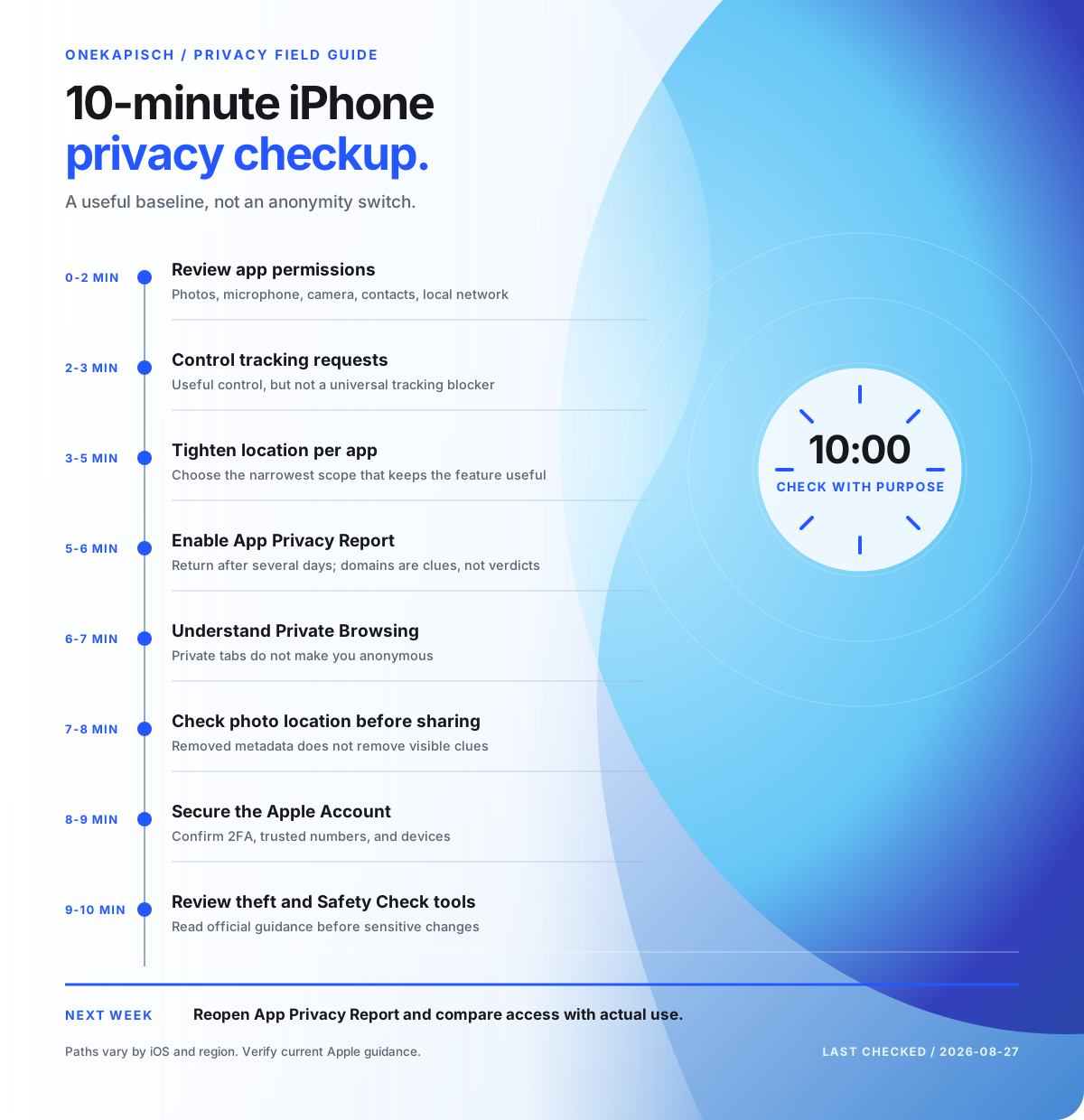
Read the infographic as text
- Minutes 0 to 2: review app permissions.
- Minute 2 to 3: control tracking requests.
- Minutes 3 to 5: tighten location access per app.
- Minute 5 to 6: enable App Privacy Report, then return after several days.
- Minute 6 to 7: understand what Private Browsing does and does not do.
- Minute 7 to 8: check photo location metadata before sharing.
- Minute 8 to 9: confirm Apple Account two-factor authentication, trusted numbers, and devices.
- Minute 9 to 10: review Stolen Device Protection and Safety Check with their safety boundaries.
Minute 0 to 2: review app permissions
Open Settings > Privacy & Security.
Review Contacts, Calendars, Reminders, Photos, Bluetooth, Local Network, Microphone, Camera, and Motion & Fitness. Apple lets you see which third-party apps requested access and change access by category. 1
For each app, ask:
- Does its main feature still need this permission?
- Can I choose selected photos instead of the full library?
- Would I notice if microphone, camera, Bluetooth, or local-network access stopped?
Remove access you no longer understand or need. A permission can be requested again if a feature later requires it.
Minute 2 to 3: control tracking requests
Open Settings > Privacy & Security > Tracking.
Review the apps listed there. You can also turn off Allow Apps to Request to Track so new requests are denied without showing a prompt. Apple's App Tracking Transparency control governs whether apps may request permission to track activity across other companies' apps and websites or access the advertising identifier. 2
This is useful, but it is not a universal anti-tracking switch. It does not stop every form of first-party collection, account-based measurement, contextual advertising, fraud prevention, or behavior covered by Apple's stated exceptions. Keep reading privacy labels and in-app settings.
Minute 3 to 5: tighten location access
Open Settings > Privacy & Security > Location Services.
Work through apps that have location access. Depending on the app and iOS version, choices can include Never, Ask Next Time Or When I Share, While Using the App, and Always. You may also be able to turn Precise Location off. 6
Use the narrowest access that still supports the feature:
- A navigation app may need precise location while in use.
- A weather app may work with approximate location.
- A photo editor may not need location at all.
- “Always” deserves a specific, ongoing reason.
Do not disable Location Services globally if you rely on Find My, emergency, navigation, or theft-protection features. Review app-by-app.
Minute 5 to 6: turn on App Privacy Report
Open Settings > Privacy & Security > App Privacy Report, then turn it on if available.
The report can show how often apps access certain data and sensors, plus app and website network activity. It starts collecting information only after you enable it, so this minute creates a baseline rather than an instant historical audit. 3
Return after several days. Look for access that conflicts with how you use an app. A domain in the report is a clue, not automatic proof of wrongdoing. Apps often rely on content delivery, authentication, crash reporting, and service providers.
Minute 6 to 7: understand Private Browsing
In Safari, open the tab overview and switch to Private browsing when you do not want visited pages and search history saved in the usual local browsing history. Apple also documents additional protections for private tabs. 8
Private Browsing is not general anonymity. Your network, employer or school, websites, signed-in accounts, downloads, bookmarks, and information you voluntarily submit can still reveal activity. Use it for the boundary it provides, not the boundary its name seems to promise.
Minute 7 to 8: check photo location before sharing
Photos can contain location metadata. In Photos, open an image, inspect its information, and review the location. Apple provides controls to adjust or remove location and to exclude location when sharing. 7
Before posting a photo from home, a school, a workplace, or a sensitive trip:
- Review the map and metadata.
- Remove or exclude location when it adds no value.
- Inspect the picture itself for street signs, badges, reflections, documents, and other visual clues.
Removing metadata does not remove clues visible in the pixels.
Minute 8 to 9: protect the Apple Account
Open your Apple Account settings and confirm that two-factor authentication is enabled, trusted phone numbers are current, and listed devices are yours. Apple says two-factor authentication helps protect the account even when someone knows the password. 9
Remove devices you no longer control only after confirming that you no longer need them for recovery or access. Account security protects synced photos, backups, messages, purchases, Find My, and other services. This is primarily a security control with major privacy consequences.
Minute 9 to 10: review theft and personal-safety tools
Stolen Device Protection
If your device supports it, open Settings > Face ID & Passcode > Stolen Device Protection. Apple documents additional biometric requirements and security delays for sensitive actions when the iPhone is away from familiar locations. It requires iOS 17.3 or later and several account and location protections. 5
This feature is designed for the risk that someone steals both the device and the passcode. Read the current Apple instructions before changing its behavior.
Safety Check
If you are concerned about unwanted sharing or personal safety, open Settings > Privacy & Security > Safety Check on iOS 16 or later. It can review and update sharing with people and apps. 4
Safety Check is not a routine “clean everything” button. Changes may be noticed by people you stop sharing with and can affect access you rely on. Use Apple's Personal Safety guidance and a safe device if another person may monitor your phone.
The five-minute follow-up next week
- Reopen App Privacy Report.
- Compare sensor access with the features you actually used.
- Review unfamiliar domains in context.
- Remove an app if its access, explanation, and value no longer align.
- Repeat the permission check after installing a large group of apps or a major iOS update.
Limitations and what this checkup does not protect
- It does not make the device, browser, or network anonymous.
- It does not audit the code or server behavior of an app.
- Permission removal can break features and does not erase data already shared.
- App Tracking Transparency does not prevent every kind of collection or measurement.
- App Privacy Report observes selected activity after activation; it does not block it or prove intent.
- Private Browsing does not hide activity from every network party or signed-in service.
- Security and personal-safety changes can have serious consequences. Use official support and a safe device when risk involves another person.
Primary sources and evidence
- 1Control access to information in apps on iPhone ↗
- 2If an app asks to track your activity ↗
- 3About App Privacy Report ↗
- 4Safety Check for an iPhone with iOS 16 or later ↗
- 5Use Stolen Device Protection on your iPhone ↗
- 6About privacy and Location Services ↗
- 7Manage location metadata in Photos ↗
- 8Browse the web privately in Safari on iPhone ↗
- 9Security and your Apple Account ↗
Last verified: