Public Wi-Fi connected but the login page won’t open
Recover a hotel or airport Wi-Fi sign-in page on iPhone or iPad and verify the connection.
Auf Deutsch lesen →
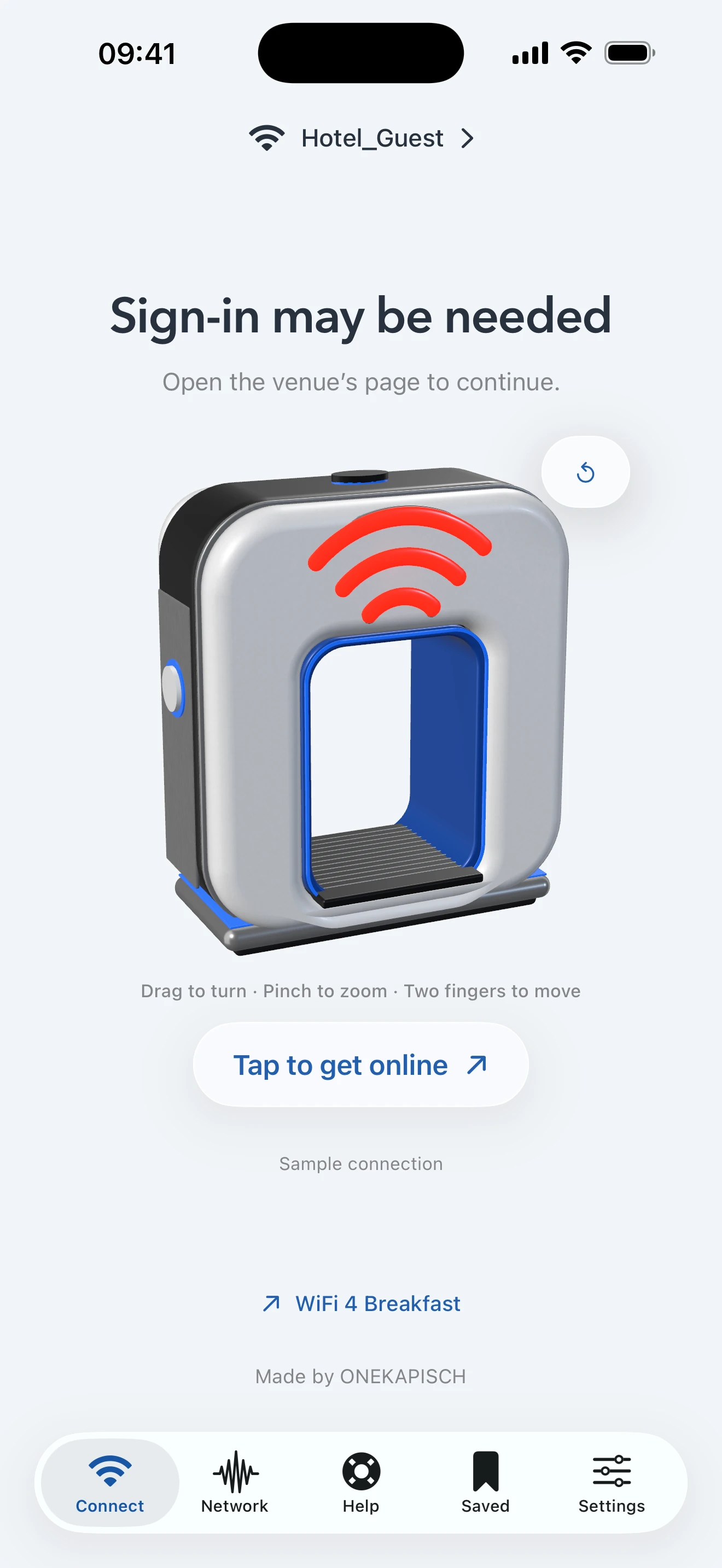
If the hotel or airport network shows as connected but pages will not load, it may still need you to sign in. Start in Wi-Fi settings. If the welcome page does not appear, WiFi 4 Breakfast can help reopen it and check whether the Wi-Fi path has internet access. Apple’s captive Wi-Fi instructions · WiFi 4 Breakfast
Get back to the sign-in page
- Confirm the network name with the hotel or venue. On iPhone or iPad, open Settings, tap Wi-Fi, and select that network. Give its welcome screen a moment to load.
- If the login screen was dismissed, open the network details and use Join Network where available. Use the venue’s instructions if it issued an access code. Apple’s sign-in steps
- If the screen still does not open, try WiFi 4 Breakfast’s portal helper. The iPhone and iPad app has troubleshooting guidance available offline. The web helper offers a plain-HTTP entry address for networks that intercept a sign-in request. Use the venue’s confirmed portal when entering any required details. WiFi 4 Breakfast rescue
Check whether Wi-Fi is really working
After accepting the terms, check for internet through the Wi-Fi connection. On an iPhone with cellular data available, a working browser tab alone can be misleading. WiFi 4 Breakfast distinguishes an available Wi-Fi connection from confirmed internet access on that path.
If the venue’s portal fails to load on multiple devices, ask the operator for the official login address or help with the network. A connectivity utility can help diagnose the issue while the venue controls access and the underlying connection.