
How to make a Mac display brighter or dimmer
Choose between XDR brightness boost, dimming below the macOS minimum, and external monitor control.
Auf Deutsch lesen →
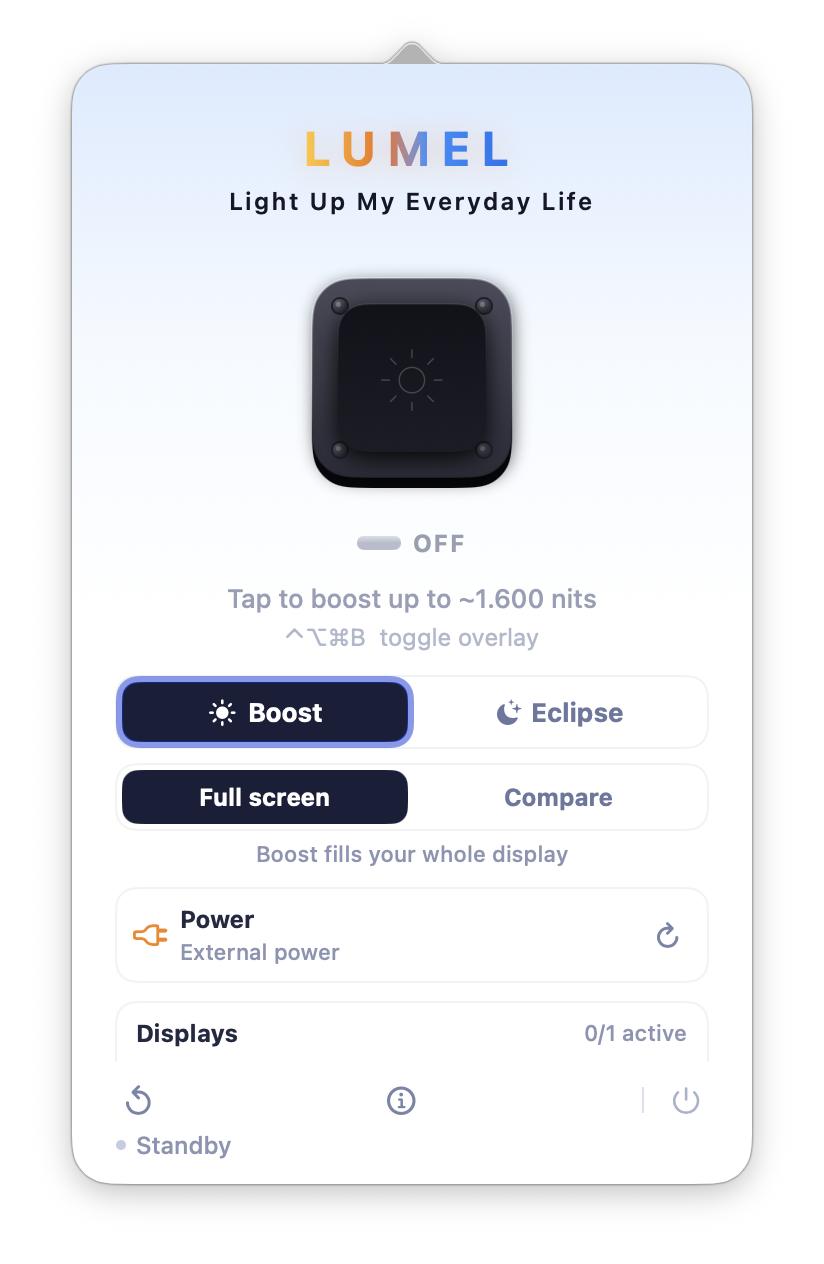
LUMEL is our pick for people who switch between bright spaces and a dark room on the same Mac. Boost uses the extra brightness headroom of supported XDR displays, and Eclipse dims below the normal macOS minimum. Display support and available brightness vary. LUMEL
Pick the control your display needs
- Start with macOS. Use the built-in brightness control for normal adjustments. Check the display and its settings before installing anything.
- Choose LUMEL for both directions. Use Boost on a supported display in bright surroundings and Eclipse when the built-in minimum is still uncomfortable. Review the requirements for Boost separately from dimming. LUMEL display modes
- Compare Vivid for XDR boosting. It documents supported hardware and its brightness controls. Vivid
- Compare Lunar for an external monitor setup. Its documentation explains how control depends on your display, connection and hardware. It also covers XDR brightness and Sub-zero dimming. Lunar documentation
Test the same display in two conditions
On a bright afternoon, open a familiar document and try Boost on a supported display. Later, put the Mac back at its normal minimum and try Eclipse in the room where you read after dark. Use a comfortable setting for each. Display temperature, power conditions and what’s on the screen can affect available headroom. If the issue is an external monitor that ignores brightness controls, check the monitor’s supported control path first. LUMEL requirements · Lunar display compatibility