Best battery apps for MacBook
Compare Mac 4 Breakfast, AlDente, coconutBattery and macOS for battery health, live charging watts, sleep drain and charge limits.
Auf Deutsch lesen →
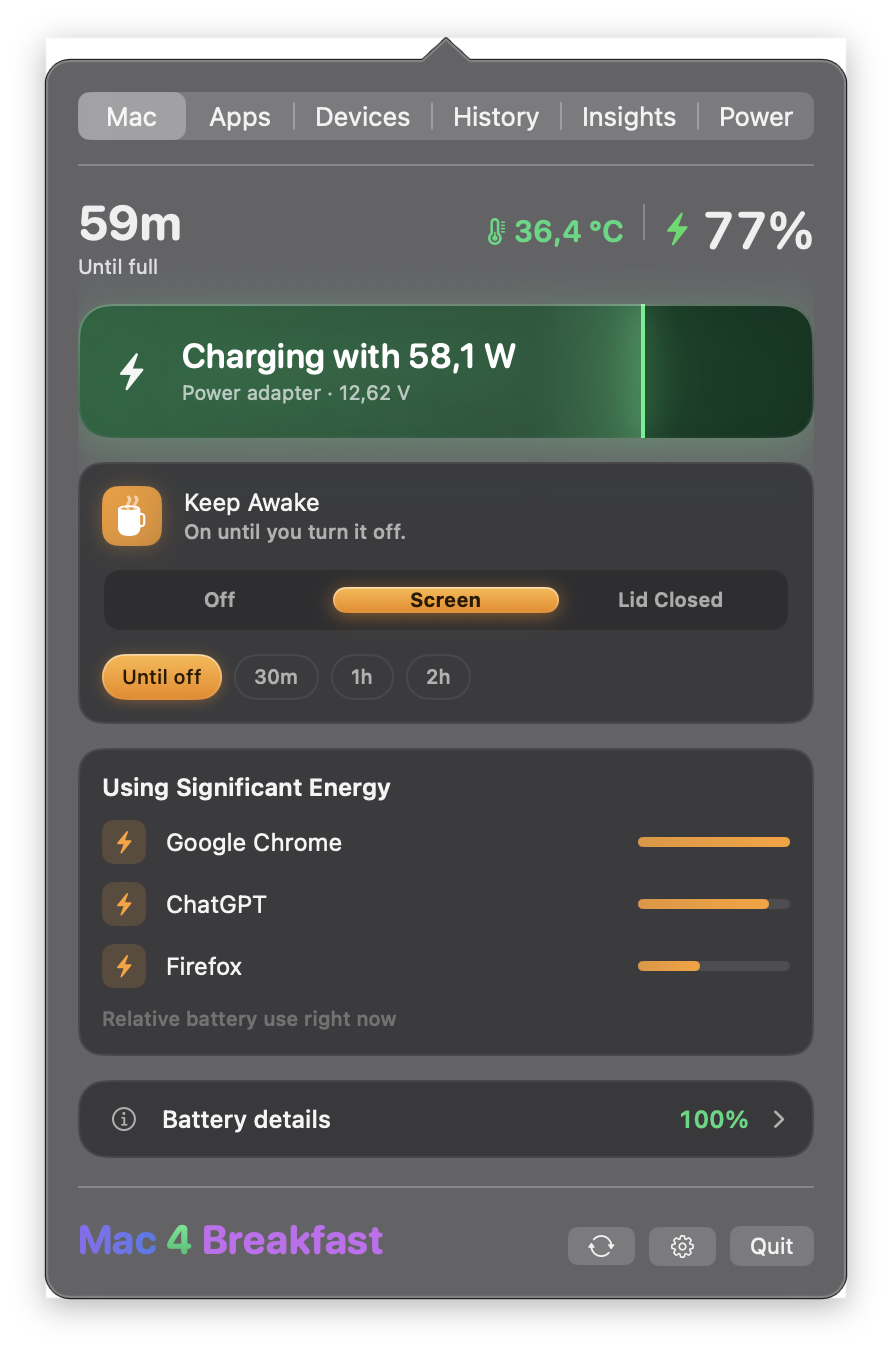
Mac 4 Breakfast is our most useful all-round battery app for an Apple Silicon MacBook when you want to understand both charge and drain. It puts live power, battery health, energy use and sleep-drain reporting in one menu-bar app. Choose AlDente for advanced charging control, coconutBattery for capacity history across Apple devices, or macOS if a charge limit and basic health check are enough. Mac 4 Breakfast · Apple Battery settings
The useful differences
- Mac 4 Breakfast for everyday diagnosis. See charging or discharging power, temperature, cycles and health where you can act on them. Review per-app energy and sleep-drain history when the battery drops faster than you expected. The app has a free tier and a one-time Pro upgrade. Check the feature list for Pro availability and macOS requirements. Mac 4 Breakfast features and pricing
- AlDente for controlling how the battery charges. Its free and paid features focus on charge management. Compare the Pro features if you want tools such as flexible charge management and heat protection. AlDente features and plans
- coconutBattery for long-term battery health. Check battery capacity and cycle information and compare supported Mac, iPhone and iPad devices. The developer lists which history and device features are part of Plus. coconutBattery
- macOS for the basics. Start with Battery settings and Activity Monitor’s Energy tab. Apple Silicon Macs on macOS Tahoe 26.4 or later have a built-in Charge Limit. Activity Monitor can also show apps with high energy impact and which apps are preventing sleep. Apple Charge Limit · Activity Monitor Energy view
Diagnose an overnight drop
If you close the lid with 72% and open it at 63%, the nine-point change tells you how much charge was lost across that interval. To investigate the cause, review when the change occurred and what your Mac was doing.
- Note the battery percentage, time, power connection and active peripherals before closing the lid.
- Check the morning reading and review the sleep-drain report. Inspect any apps flagged as preventing sleep in Activity Monitor.
- Repeat with one change, such as disconnecting an accessory or quitting an app you suspect. Compare nights of similar duration rather than expecting one result to settle it.
The example is illustrative. An app flagged today is a lead to investigate. Battery percentage is rounded, and overnight conditions can change. Mac 4 Breakfast sleep and energy features · Apple Activity Monitor
Check what a charger is actually doing
If two travel chargers behave differently, try the same cable, battery range and workload for both. Plug in, wait for the reading to settle, then compare what the Mac reports while the battery is actively charging. A charger’s rated output is its maximum, and the battery can receive less when your Mac is busy or near its charging limit. If charging is paused, check your Battery settings before concluding there is a cable problem. Mac 4 Breakfast power readings · Apple charging behavior
Do you need a battery app at all?
If your only goal is a charge ceiling, try the built-in setting on a supported Mac. If you want deeper charging controls, compare AlDente. Mac 4 Breakfast makes the most sense when your questions change from day to day: how fast is it charging, which apps are using energy, and what happened after you closed the lid?